📱 Airtable Extension Guide
Version 1.2.0 | Updated: December 2025The Airtable Lead Enricher Extension allows you to enrich leads directly from your Airtable base without leaving the interface. Process up to 1,000 records per batch with real-time progress tracking. All data is securely processed through DataHQ's infrastructure.
🎥 See It in Action
Watch the complete workflow: API setup, field mapping, and live enrichment
✨ Key Features
⚡ Batch Processing
Enrich up to 1,000 leads at once with progress tracking
🎯 Smart Mapping
Auto-fill field mappings with fuzzy matching algorithm
🔒 Secure
Keys stored locally in browser, show/hide toggle, clear all option
📊 Real-time Tracking
Live progress updates with status and completion percentage
🔍 Flexible Filtering
Filter by enrichment status, selected records, or custom views
🤖 AI-Powered
Optional OpenAI integration for lead scoring and insights
🚀 Installation
1 Open Your Airtable Base
Navigate to the Airtable base where you want to enrich leads.
2 Add the Extension
Click the Extensions button in the top right corner, then click + Add an extension.
3 Search & Install
Search for "Airtable Lead Enricher" in the marketplace and click Add extension.
📖 Quick Start Guide
Once installed, the extension opens with a 3-step workflow to configure and enrich your leads.
🎥 Video Demo
Watch the complete workflow: API setup, field mapping, and live enrichment
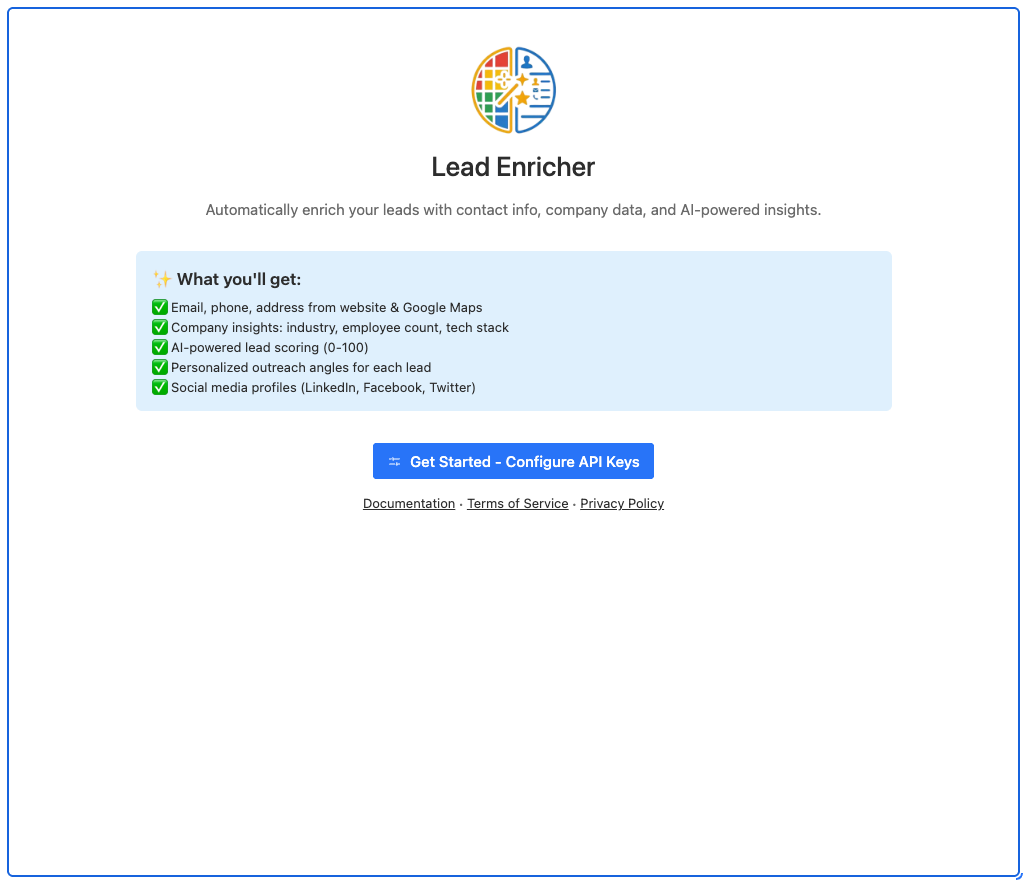
1 Configure API Keys
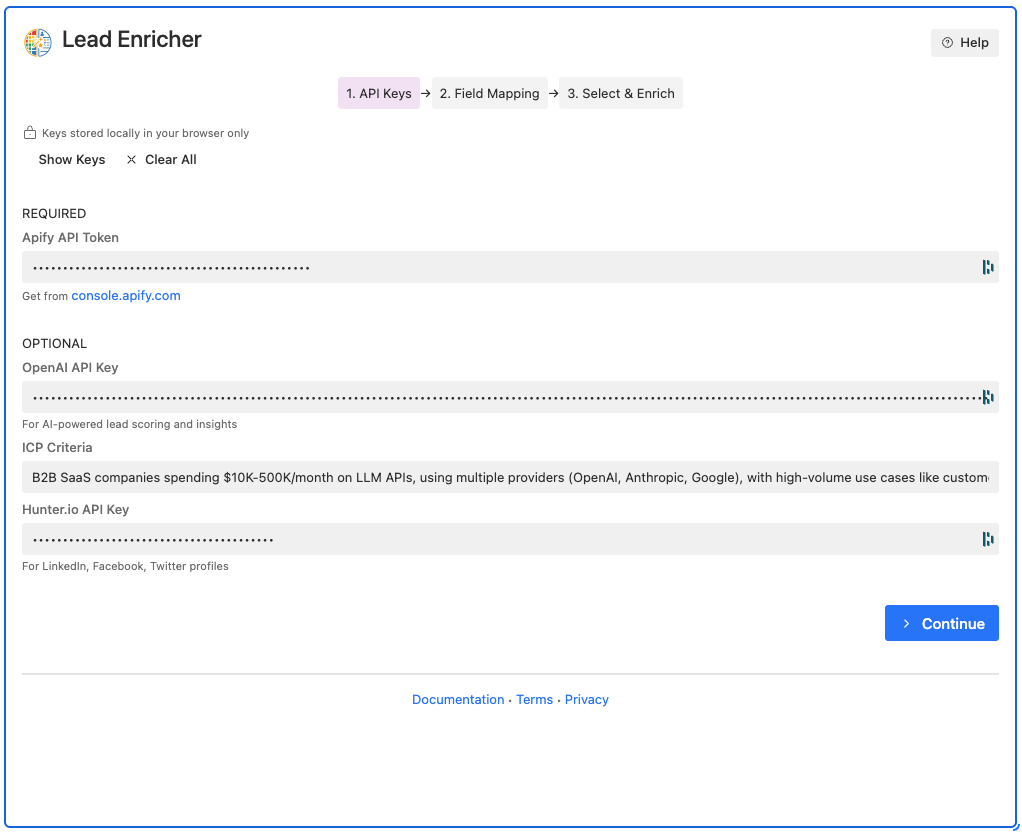
Required:
- Apify API Token: Get from console.apify.com
Optional (for enhanced features):
- OpenAI API Key: For AI-powered lead scoring and insights
- ICP Criteria: Your ideal customer profile (e.g., "B2B SaaS, 50-500 employees")
- Hunter.io API Key: For LinkedIn, Facebook, Twitter profile discovery
Security Features:
- 🔒 Keys stored locally in your browser only
- 👁️ Show/Hide toggle for sensitive data
- 🗑️ Clear All button to reset settings
Click "Continue" when done.
2 Map Your Fields
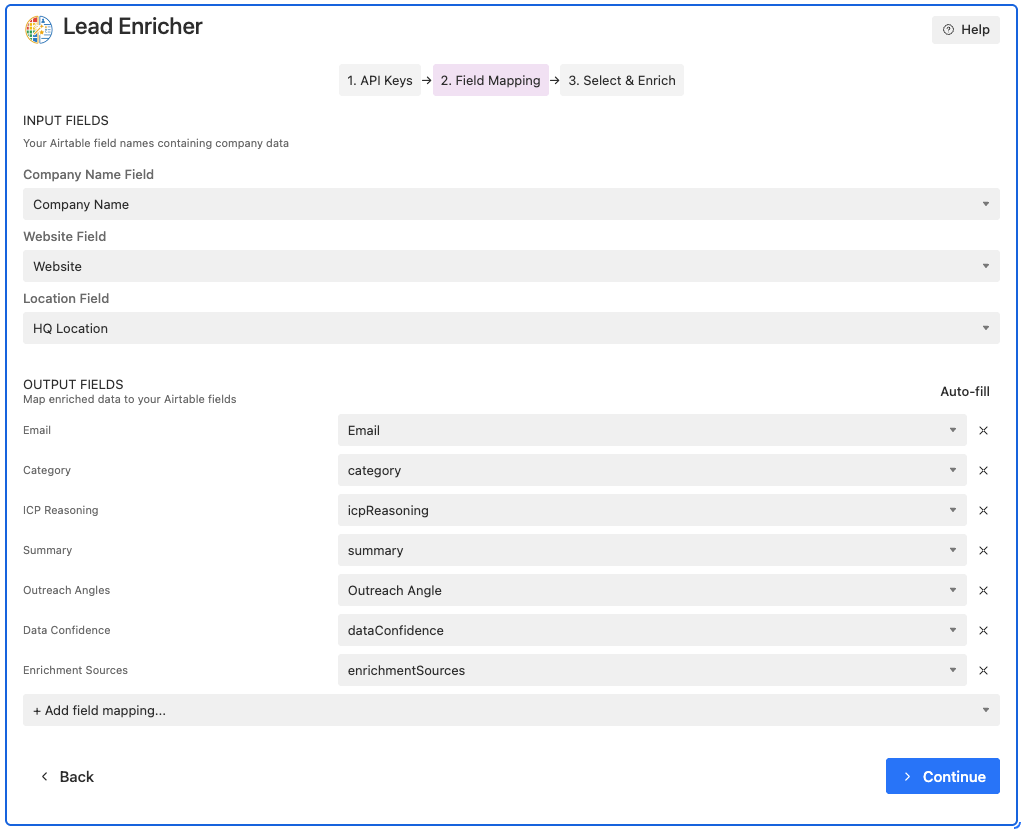
Input Fields (your Airtable data):
- Company Name Field: Which field contains company names
- Website Field: Which field contains websites
- Location Field: (Optional) Which field contains location data
Output Fields (where to write enriched data):
- Click "Auto-fill" to automatically match fields using fuzzy matching
- Or manually select "+ Add field mapping..." to map each field
- Remove unwanted mappings with the X button
- "lead_score" → "Lead Score" (exact match)
- "icp score" → "ICP Score" (contains match)
- "linkedin" → "LinkedIn URL" (word match)
Click "Continue" to proceed.
3 Select Records & Enrich
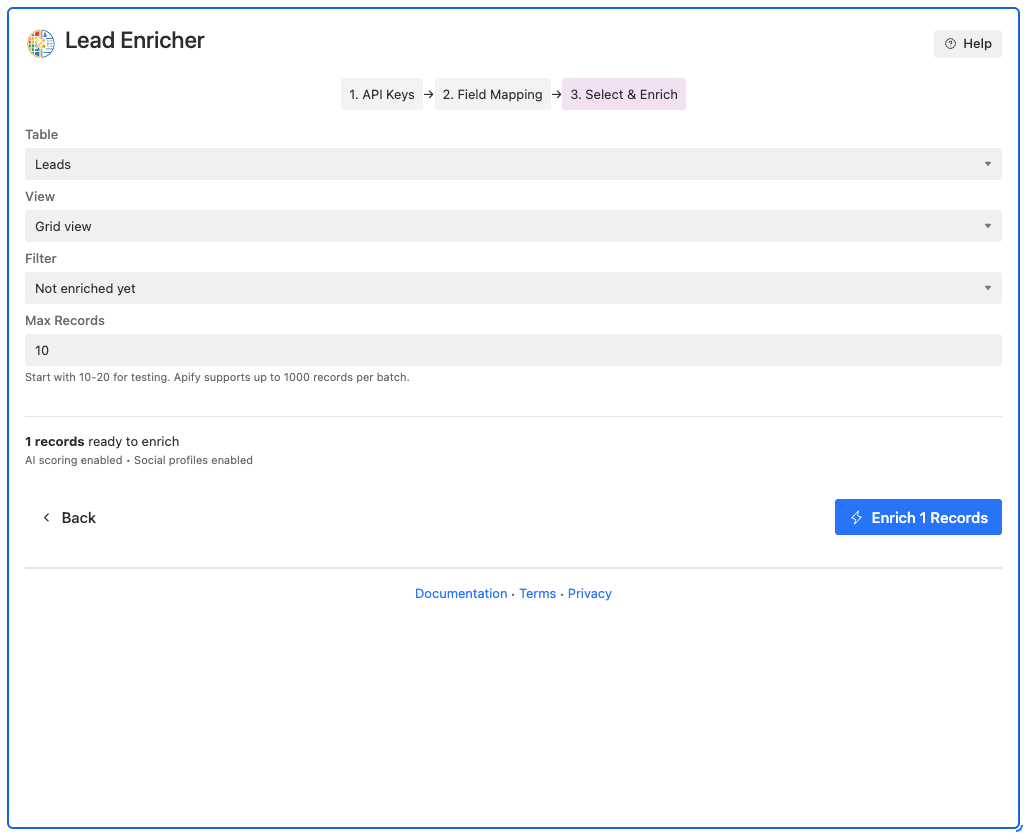
Configuration Options:
| Setting | Description | Recommendation |
|---|---|---|
| Table | Select which table contains your leads | Your main leads table |
| View | Select which view to process | Create a filtered view for specific criteria |
| Filter |
• Not enriched yet - Only records without enrichedAt • All records - Process all matching records • Retry failed - Re-process failed enrichments |
"Not enriched yet" to avoid duplicates |
| Max Records | How many records to process (1-1000) | Start with 10-20 for testing |
The summary shows:
- ✓ Number of selected records (if any)
- X records ready to enrich
- AI scoring enabled/disabled
- Social profiles enabled/disabled
Click "Enrich X Records" to start.
⏳ Tracking Progress
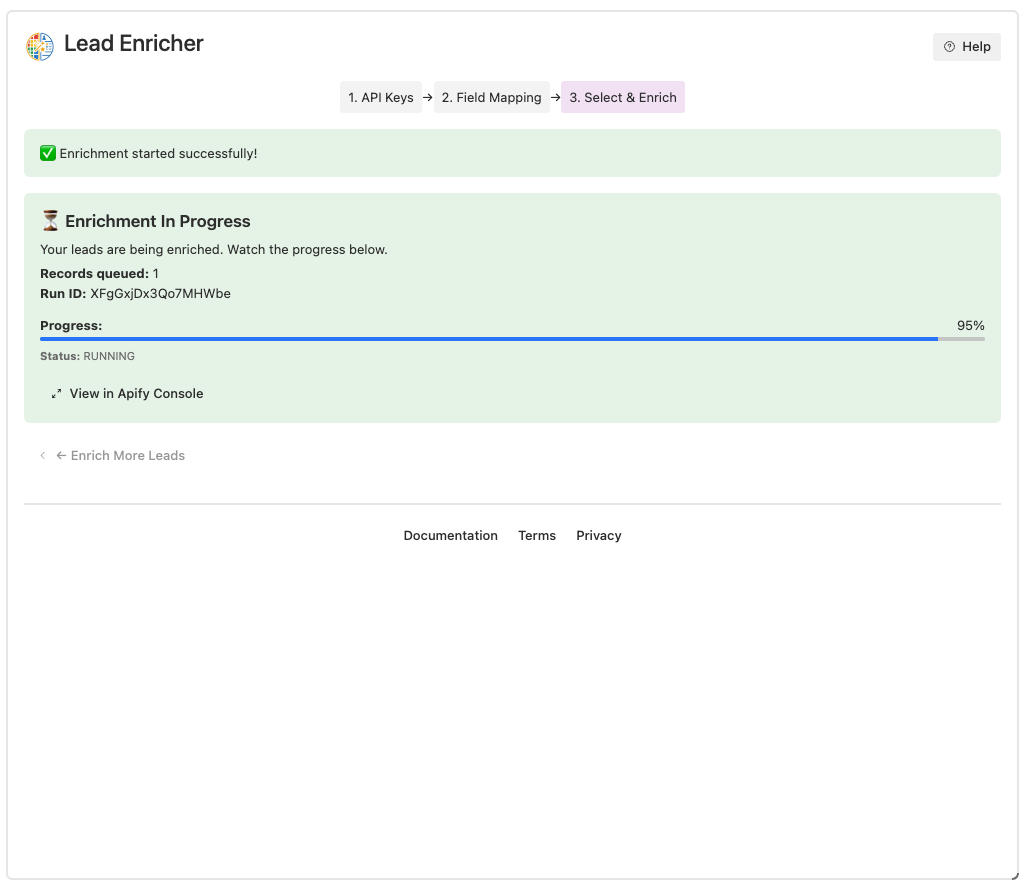
Once started, you'll see:
- Progress Bar: Visual indication of completion (0-100%)
- Status: Current activity (Running, Fetching data, Writing to Airtable)
- Processed Records: Count of completed records
- Run ID: Unique identifier for this enrichment run
- View in Apify Console → Link to detailed logs
✅ Completion
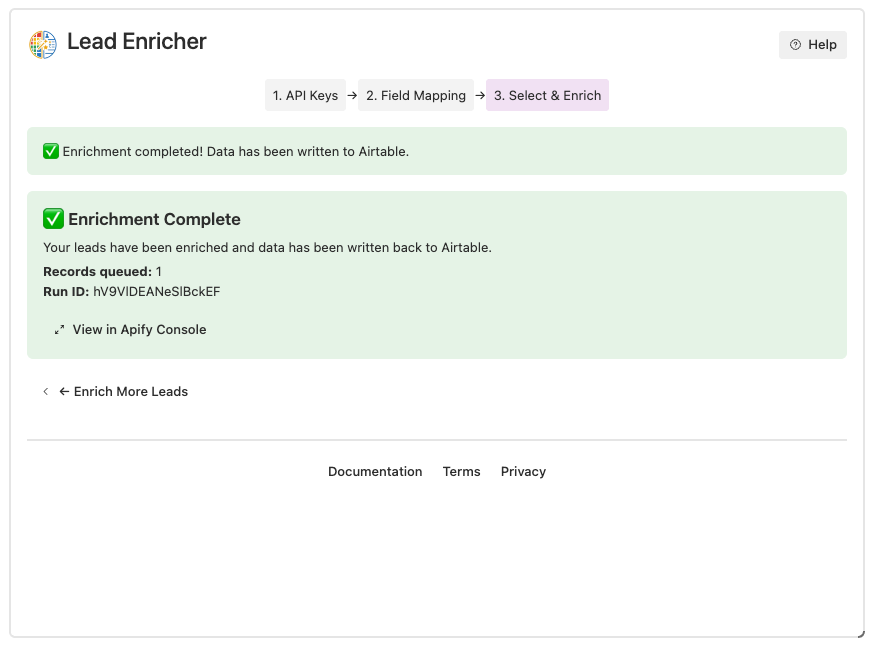
When complete, you'll see:
- ✅ "Enrichment Complete" message
- Confirmation that data has been written to Airtable
- Final record count and run details
- "← Enrich More Leads" button to return to Step 3
All enriched data is automatically written back to your Airtable base using the field mappings you configured.
📋 Field Reference
Available enriched fields that can be mapped to your Airtable columns:
| Enriched Field | Type | Description |
|---|---|---|
| Text | Primary contact email | |
| Phone | Text | Primary contact phone |
| Address | Text | Physical business address |
| Industry | Text | Business industry/category |
| Employee Count | Number | Estimated number of employees |
| LinkedIn URL | URL | Company LinkedIn profile |
| Facebook URL | URL | Company Facebook page |
| Twitter Handle | Text | Company Twitter username |
| Lead Score | Number (0-100) | AI-generated lead quality score |
| ICP Score | Number (0-100) | Ideal customer profile match score |
| ICP Reasoning | Long Text | Explanation for ICP score |
| Summary | Long Text | AI-generated company summary |
| Outreach Angles | Long Text | Suggested outreach strategies |
| Tech Stack | Text | Technologies used by company |
| Rating | Number | Google Maps rating (if available) |
| Review Count | Number | Number of Google reviews |
| Category | Text | Business category from Google Maps |
| Description | Long Text | Business description |
| Data Confidence | Number (0-100) | Confidence score for enriched data |
| Enriched At | Date/Time | Timestamp of enrichment |
| Enrichment Sources | Text | List of data sources used |
🔧 Troubleshooting
"Invalid API Token"
- ✅ Token must start with
apify_api_ - ✅ Get token from Apify Console
- ✅ Check token hasn't expired
No Records Found
- ✅ Select correct table and view
- ✅ Records must have Company Name filled
- ✅ Try "All records" filter first
Enrichment Stuck
- ✅ Check Apify Console for run status
- ✅ Large batches (500+ records) take 25-40 minutes
- ✅ Keep extension tab open during processing
Data Not Writing
- ✅ Field names are case-sensitive
- ✅ Number fields need Number type in Airtable
- ✅ Check field names haven't changed
Extension Not Showing
- ✅ Refresh Airtable page
- ✅ Check Extensions panel (puzzle icon)
- ✅ Try different browser (Chrome/Firefox/Safari)
💡 Best Practices
Testing Before Production
- Create a "Test" view with 5-10 known companies
- Run enrichment on test view first
- Verify all fields populate correctly
- Check data quality and accuracy
- Then scale to full production batches
Cost Optimization
- Use "Not enriched yet" filter to avoid re-processing
- Start with smaller batches (50-100) to test
- Only enable AI features (OpenAI, Hunter.io) when needed
- Monitor usage in Apify Console
Field Mapping Tips
- Use consistent field names (e.g., "Lead Score" not "score lead")
- Create numeric fields in Airtable for scores and counts
- Use long text fields for summaries and reasoning
- URL fields for social media links
- Date field for "Enriched At" timestamp
Performance Tips
- Optimal batch size: 100-200 records
- Keep extension tab open during processing
- Don't refresh the page during enrichment
- Use filtered views to process specific segments
🆘 Support & Resources
- 📧 Contact Us: contact@datahq.pro
- 📖 Main Documentation
- 📜 Terms of Service
- 🔒 Privacy Policy
- 🐛 Report Issues
- 💬 Apify Console